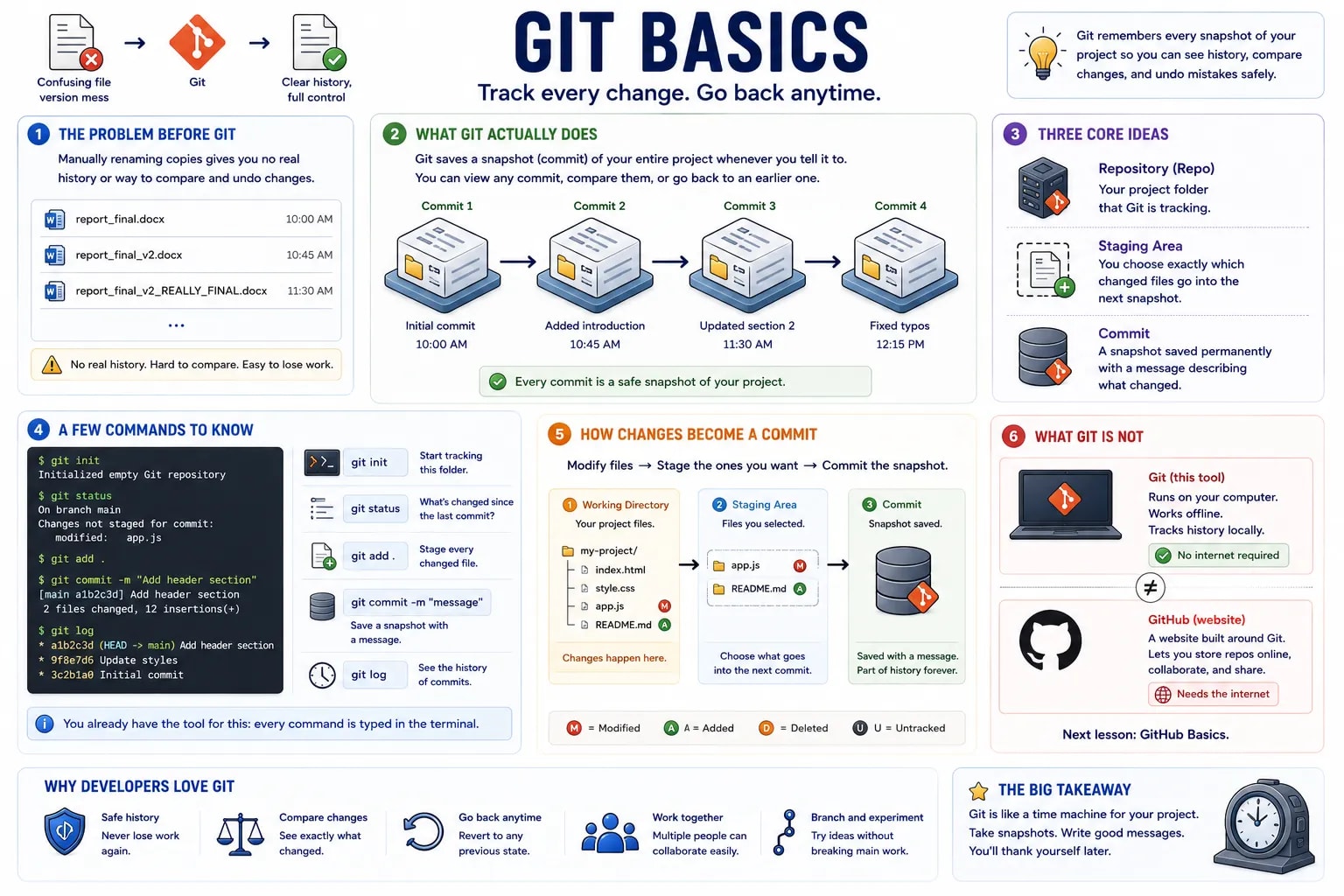
Anyone who has ever saved a file as report_final.docx, then report_final_v2.docx, then report_final_v2_REALLY_FINAL.docx has already felt the exact problem Git exists to solve.
Manually renaming copies gives you no real history. You can't easily see what actually changed between versions, why it changed, or undo just one specific change without losing everything after it.
Git is a version control system — a tool that takes a snapshot of your entire project every time you tell it to, and remembers every snapshot forever. Each snapshot is called a commit. You can look at any commit from the project's history, compare two commits, or go back to an earlier one.

A repository (or "repo") is a project folder that Git is tracking. The staging area is where you choose exactly which changed files should go into the next snapshot — you don't have to commit everything at once. A commit is that snapshot, saved permanently with a short message describing what changed.
git init                  # start tracking this folder
git status                # what's changed since the last commit?
git add .                 # stage every changed file
git commit -m "message"   # save a snapshot with a message
git log                   # see the history of commits
You already have the tool for this
Every one of these is typed in the terminal — this is exactly why Command Line Basics came before this lesson, not after it.
Git itself lives entirely on your own computer and needs no internet connection — it's just tracking history locally. It is not the same thing as GitHub, a separate website built around Git, which is exactly what the next lesson is about.