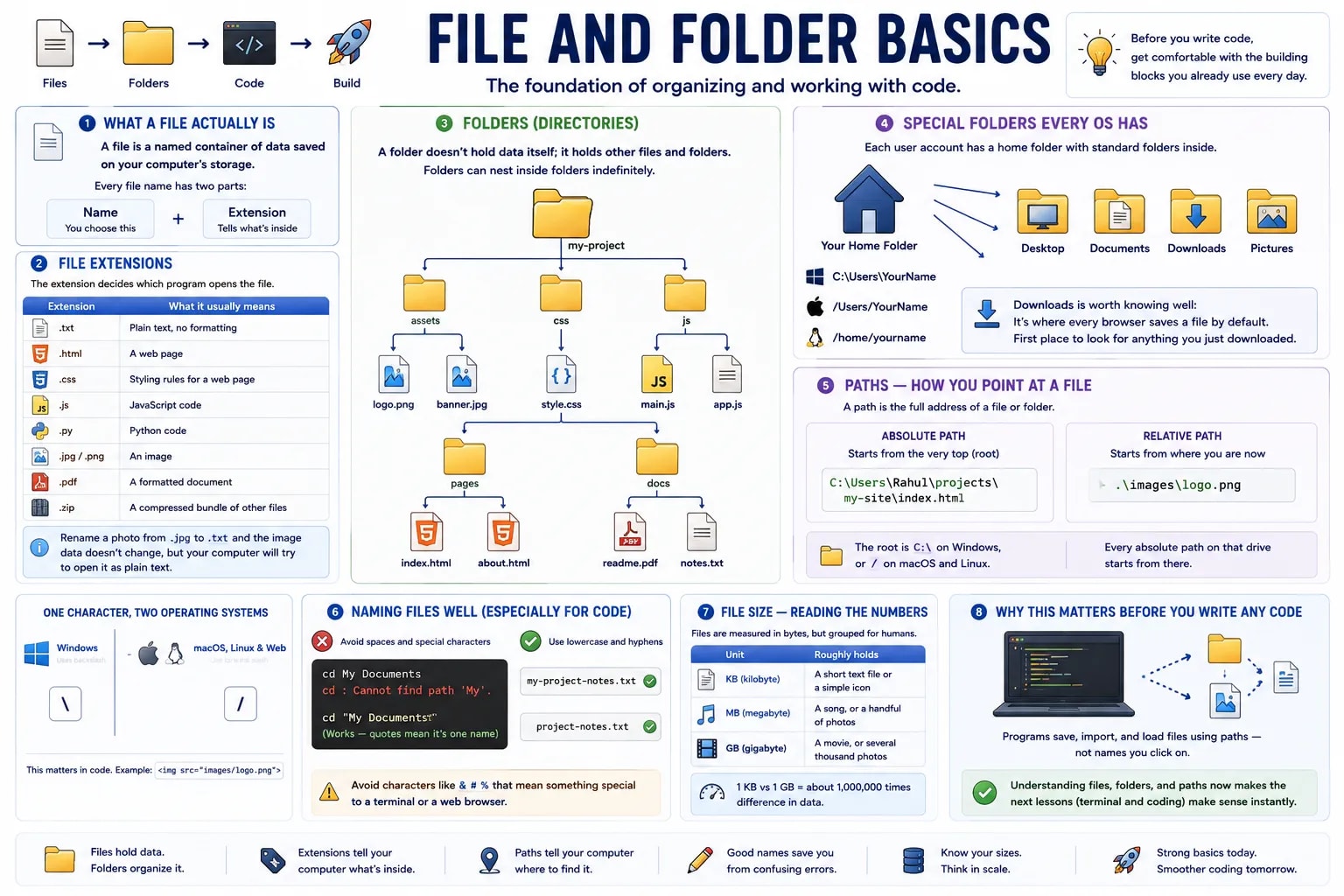
Before you open a code editor or a terminal, it helps to be completely comfortable with two ideas you already use every day without thinking about them: files and folders. Coding just makes you interact with them more directly than clicking icons does.
A file is simply a named container of data saved on your computer's storage. Every file's name has two parts: the part you choose, and an extension — the letters after the last dot — that tells your computer what kind of data is inside.
The extension is how your operating system decides which program should open a file. Rename a photo from .jpg to .txt and the image data doesn't change, but your computer will suddenly try to open it as if it were plain text.
| Extension | What it usually means |
|---|---|
| .txt | Plain text, no formatting |
| .html | A web page |
| .css | Styling rules for a web page |
| .js | JavaScript code |
| .py | Python code |
| .jpg / .png | An image |
| A formatted document | |
| .zip | A compressed bundle of other files |
A folder — also called a directory — doesn't hold data itself; it holds other files and folders. Folders can nest inside folders indefinitely, which is what lets you organize thousands of files into a structure you can actually navigate.

Every user account has one main home folder — C:\Users\YourName on Windows, /Users/YourName on macOS, /home/yourname on Linux — and a standard set of folders live inside it: Desktop, Documents, Downloads, Pictures. Almost every app's save dialog, and a fresh terminal window, both start you off inside this home folder.

Downloads is worth knowing well specifically: it's where every browser saves a file by default, so it's usually the very first place to look for anything you just downloaded, before assuming it's missing.
A path is the full address of a file or folder — the sequence of folders you'd click through to reach it, written as text instead. An absolute path starts from the very top of the drive; a relative path starts from wherever you currently are.
Absolute path:
C:\Users\Rahul\projects\my-site\index.html

Relative path (from inside my-site):
.\images\logo.png
One character, two operating systems
Windows separates folders with a backslash \. macOS and Linux — and every web browser — use a forward slash /. This matters the moment you write a path inside actual code, like an <img src="images/logo.png"> tag.
The very top of a path is called the root — C:\ on Windows, or a single / on macOS and Linux. Every absolute path on that drive starts from there, the same way every address in a city ultimately starts from the city itself.
A file name like My Project Notes.txt works fine when you click it, but the space in the middle causes real friction the moment you type that name instead — in a terminal, or inside code.
cd My Documents
cd : Cannot find path 'My'

cd "My Documents"
(works — the quotes tell the terminal it's one name, not two)
This is why almost every real project uses lowercase names with hyphens instead of spaces — my-project-notes.txt, project-notes.txt — and avoids characters like &, #, or % that mean something special to a terminal or a web browser. It's a habit worth building before it costs you a confusing error.
File sizes are measured in bytes, but almost never shown as raw bytes — they're grouped into kilobytes (KB), megabytes (MB), and gigabytes (GB), each about a thousand times bigger than the last.
| Unit | Roughly holds |
|---|---|
| KB (kilobyte) | A short text file or a simple icon |
| MB (megabyte) | A song, or a handful of photos |
| GB (gigabyte) | A movie, or several thousand photos |
Knowing this scale helps a size number mean something instantly — a 4 KB download finishing before you can blink and a 4 GB one taking several minutes aren't a coincidence, they're a thousand-times difference in actual data.
Every time a program saves a file, imports another file, or loads an image, it's working with a path — not a name you clicked on. Being fluent with files, folders, and paths now means the next few lessons — using a terminal, and later writing actual code — will make sense immediately instead of feeling like a second new skill on top of the first.