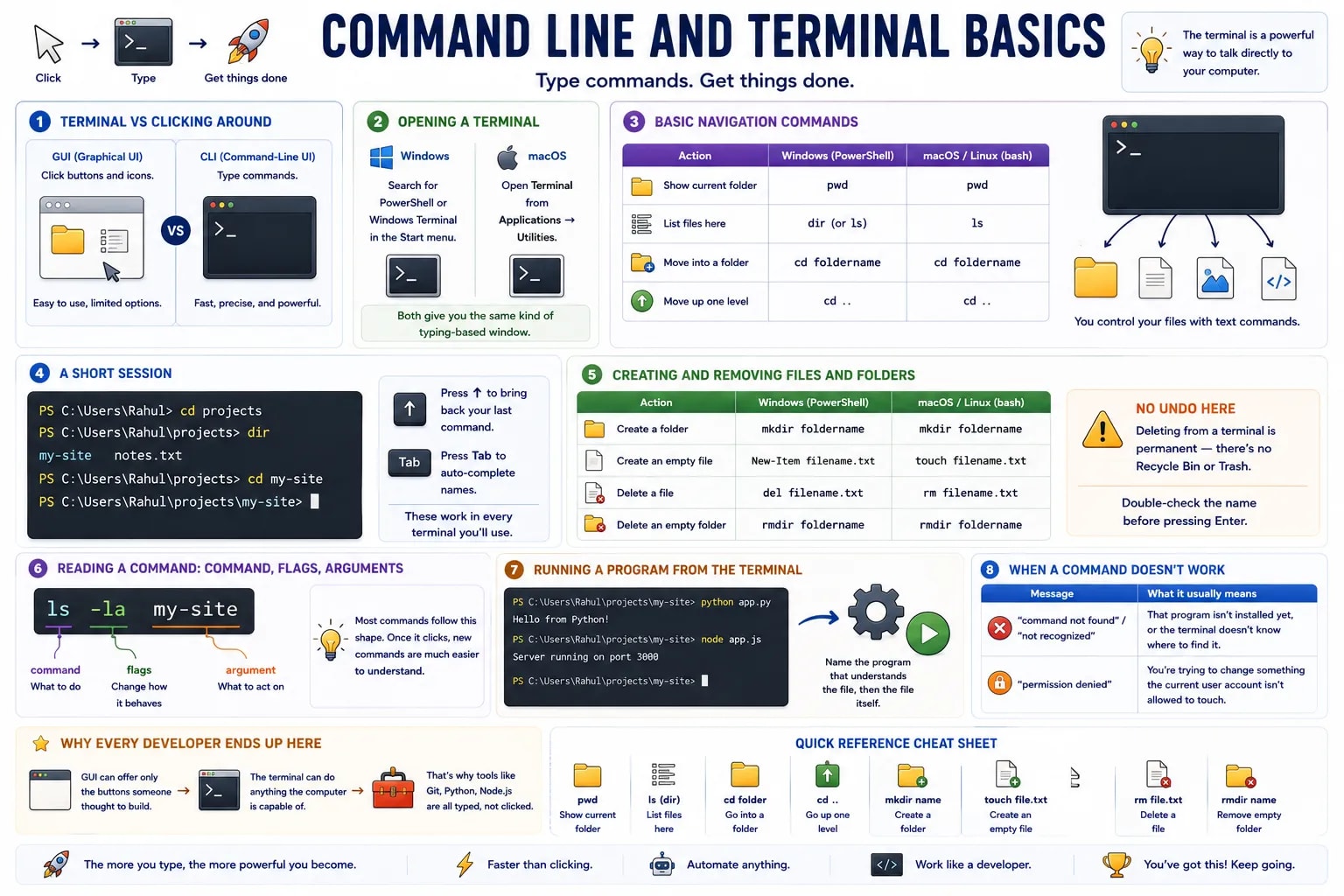
Almost every real developer tool — installing packages, running a script, using Git — happens through typed commands, not clicked icons. The terminal (also called the command line or console) is where you type them.
A normal app is a GUI — a Graphical User Interface — where you click buttons and icons. A terminal is a CLI — a Command-Line Interface — where you type a line of text describing exactly what you want done, and the computer does it immediately, with no menus in between.
On Windows, search for PowerShell or Windows Terminal in the Start menu. On macOS, open the Terminal app from Applications → Utilities. Both give you the same kind of typing-based window — the exact commands differ slightly, which is exactly why the table below shows both.

| Action | Windows (PowerShell) | macOS / Linux (bash) |
|---|---|---|
| Show current folder | pwd | pwd |
| List files here | dir (or ls) | ls |
| Move into a folder | cd foldername | cd foldername |
| Move up one level | cd .. | cd .. |
PS C:\Users\Rahul> cd projects
PS C:\Users\Rahul\projects> dir
my-site   notes.txt
PS C:\Users\Rahul\projects> cd my-site
PS C:\Users\Rahul\projects\my-site>
Two habits worth building immediately
Press the ↑ arrow to bring back your last command instead of retyping it, and press Tab to auto-complete a file or folder name — both work in every terminal you'll ever use.
Navigation gets you around; these commands let you actually change what's there — the terminal equivalent of right-click → New Folder, or Delete.
| Action | Windows (PowerShell) | macOS / Linux (bash) |
|---|---|---|
| Create a folder | mkdir foldername | mkdir foldername |
| Create an empty file | New-Item filename.txt | touch filename.txt |
| Delete a file | del filename.txt | rm filename.txt |
| Delete an empty folder | rmdir foldername | rmdir foldername |
No undo here
Deleting from a terminal is permanent — there's no Recycle Bin or Trash to rescue you afterward. Double-check the file or folder name before pressing enter, especially with anything that deletes a whole folder's contents at once.
Most commands follow the same shape: the command itself, optional flags that change how it behaves (usually starting with - or /), and an argument — what to actually act on.
ls -la my-site
│   │   └─ argument: which folder to list
│   └─ flags: -l (long format) and -a (show hidden files too)
└─ command: list files
Once this shape clicks, an unfamiliar command stops looking like a magic word to memorize and starts looking like something you can actually read — a command, adjusted by flags, aimed at an argument.
Instead of double-clicking a file, you can tell the terminal to run it directly by naming the program that understands it, followed by the file: python app.py runs a Python file, node app.js runs a JavaScript file. This is how nearly every real project actually gets started, once you're past the code editor.

Two errors show up constantly for beginners, and neither means anything is broken:
| Message | What it usually means |
|---|---|
| "command not found" / "not recognized" | That program isn't installed yet, or the terminal doesn't know where to find it |
| "permission denied" | You're trying to change something the current user account isn't allowed to touch |
A GUI can only offer the buttons someone thought to build. The terminal can do anything the computer is capable of, which is why tools like Git, Python, and Node.js are all typed, not clicked. The next two lessons — Git and GitHub — are typed entirely from here.