The Computer Hardware lesson introduced RAM as the computer's fast, temporary working space. This lesson goes further into memory as a whole — the kinds of storage a computer's processor reaches for constantly while it works, as opposed to the long-term storage covered in the next lesson.
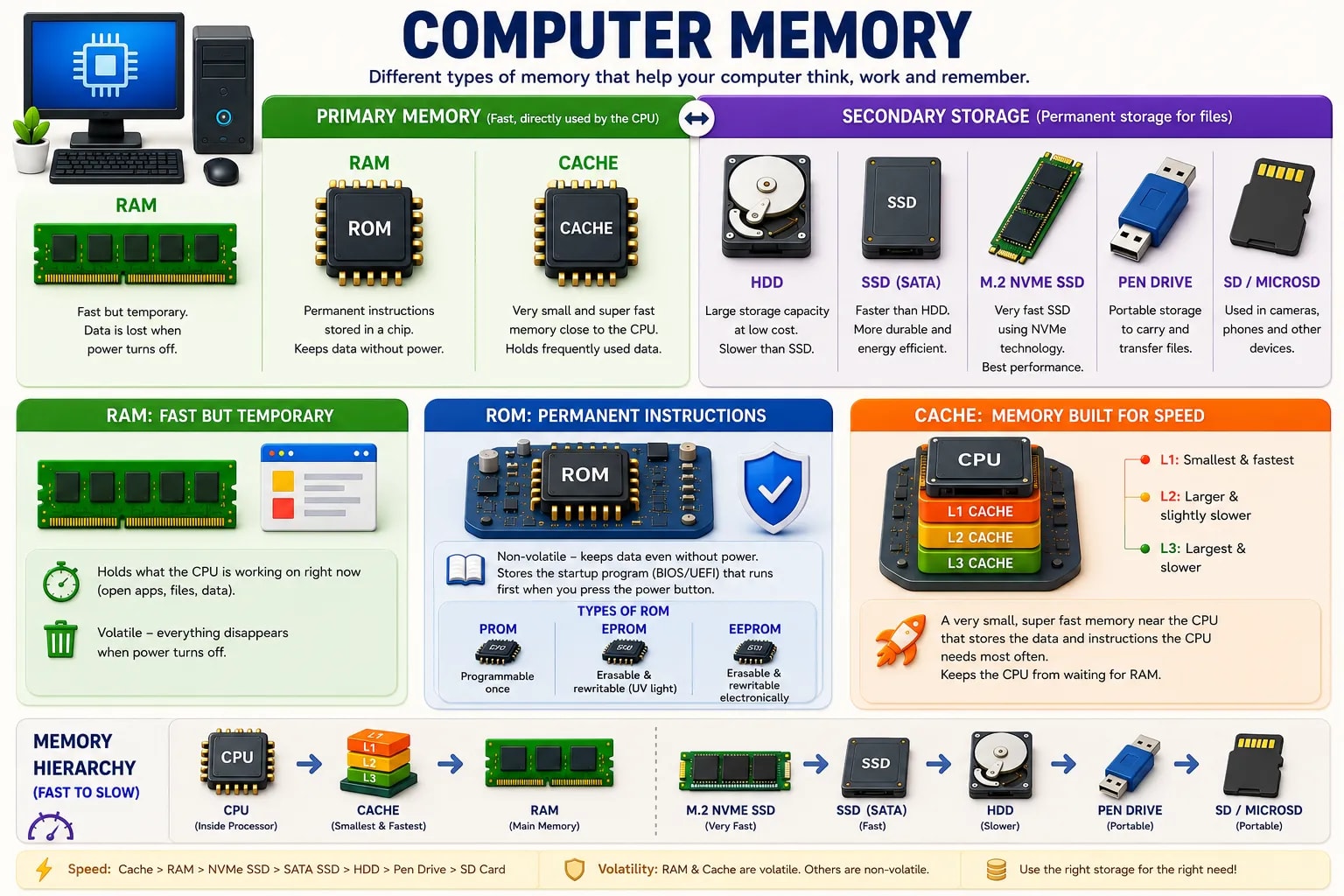
Computing draws a line between primary memory — memory the processor can use directly and instantly, built to be fast — and secondary storage — where files live permanently, built to be large and affordable rather than fast. RAM, ROM, and cache are all primary memory. Hard drives, SSDs, and pen drives are secondary storage, covered in the next lesson.
As covered in the hardware lesson, RAM (Random Access Memory) holds whatever the CPU is actively working with — open apps, open documents, anything in use right now. It is fast, but volatile, meaning everything inside it disappears the instant the power turns off. More RAM generally lets a computer keep more programs open at once without slowing down.
ROM (Read-Only Memory) is the opposite of RAM in almost every way. It is non-volatile — its contents survive with the power off — but it is designed to be written once (or rarely) and then just read, over and over, never changed during normal use. A computer's ROM chip holds the small startup program that runs the instant you press the power button, before the operating system has even loaded, checking the hardware and locating where to load the rest of the system from.
A few related terms you may come across: PROM (Programmable ROM) can be written to once after manufacturing; EPROM and EEPROM can be erased and rewritten a limited number of times using special methods — useful for updating a device's built-in startup software without replacing the chip entirely.
Cache (pronounced "cash") is a very small, very fast slice of memory sitting even closer to the CPU than RAM — often built directly into the processor chip itself. Its job is to hold the small pieces of data and instructions the CPU is most likely to need next, so it does not have to wait for the comparatively slower trip to RAM every single time.
Cache is typically organized in layers — L1 (smallest and fastest, closest to the CPU core), L2, and L3 (larger but slightly slower) — each one trading some speed for more capacity. You do not need to memorize these layers to use a computer well; the idea to keep is simply that cache is the fastest, smallest layer of memory a computer has.
| Type | Speed | Keeps data without power? | Typical job |
|---|---|---|---|
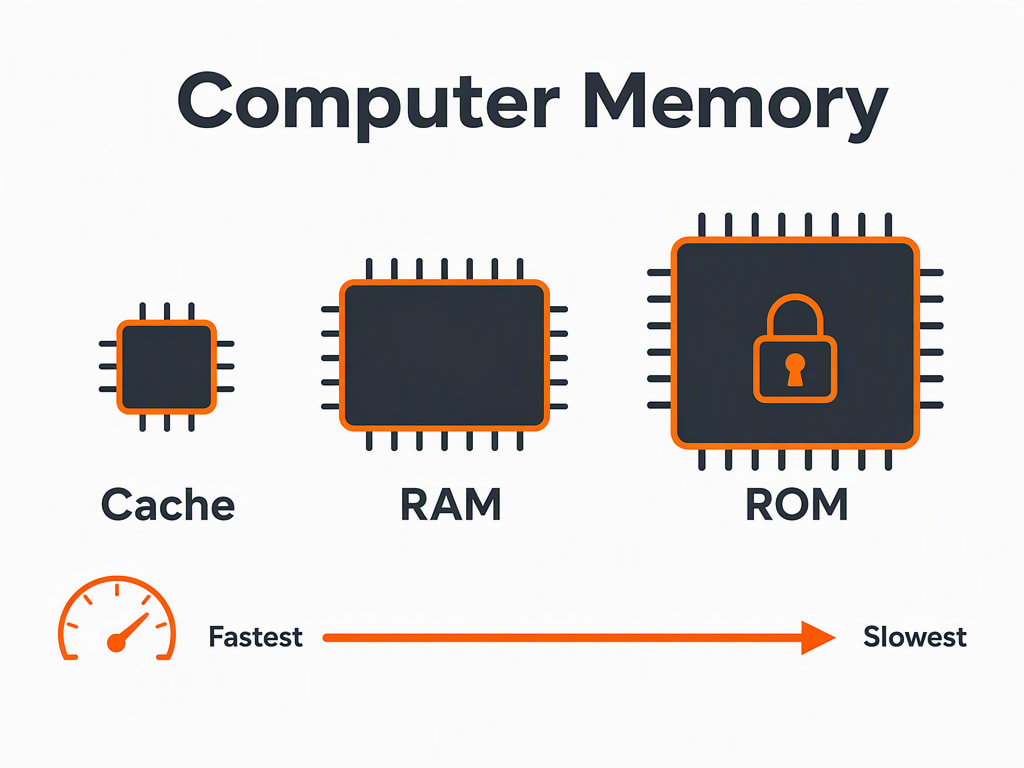
| Cache | Fastest | No | Holds what the CPU needs right now |
| RAM | Fast | No | Holds whatever is currently open or running |
| ROM | Slower | Yes | Holds the fixed startup instructions |
Memory Is Not the Same as Storage
It is easy to confuse "memory" and "storage" because both hold data — the difference this lesson and the last one both point to is speed and permanence. Memory (RAM, ROM, cache) is what the processor touches directly while working; storage (covered next) is where files actually live long-term.
The next lesson looks at secondary storage in detail — hard drives, SSDs, pen drives, and cloud storage — the devices that keep your files safe even when the computer is completely switched off.