

Every Office lesson so far has covered Microsoft's desktop apps — Word, Excel, PowerPoint — installed software that saves files to your own computer. Google Workspace is the cloud-based alternative: Docs, Sheets, and Slides do the same core jobs as Word, Excel, and PowerPoint, but run entirely in a browser, save automatically to Google Drive, and are built from the ground up for several people editing the same file at once. For anyone without a paid Office license — which is most students and small businesses — it is also completely free.
Google Workspace is Google's suite of productivity apps, tied to a Google account. Nothing installs on your computer — open a browser, sign in, and start working. The core apps map directly onto what the last few lessons already taught: Docs for documents, Sheets for spreadsheets, Slides for presentations, and Drive as the file storage everything lives in, replacing your computer's own folders for these files.
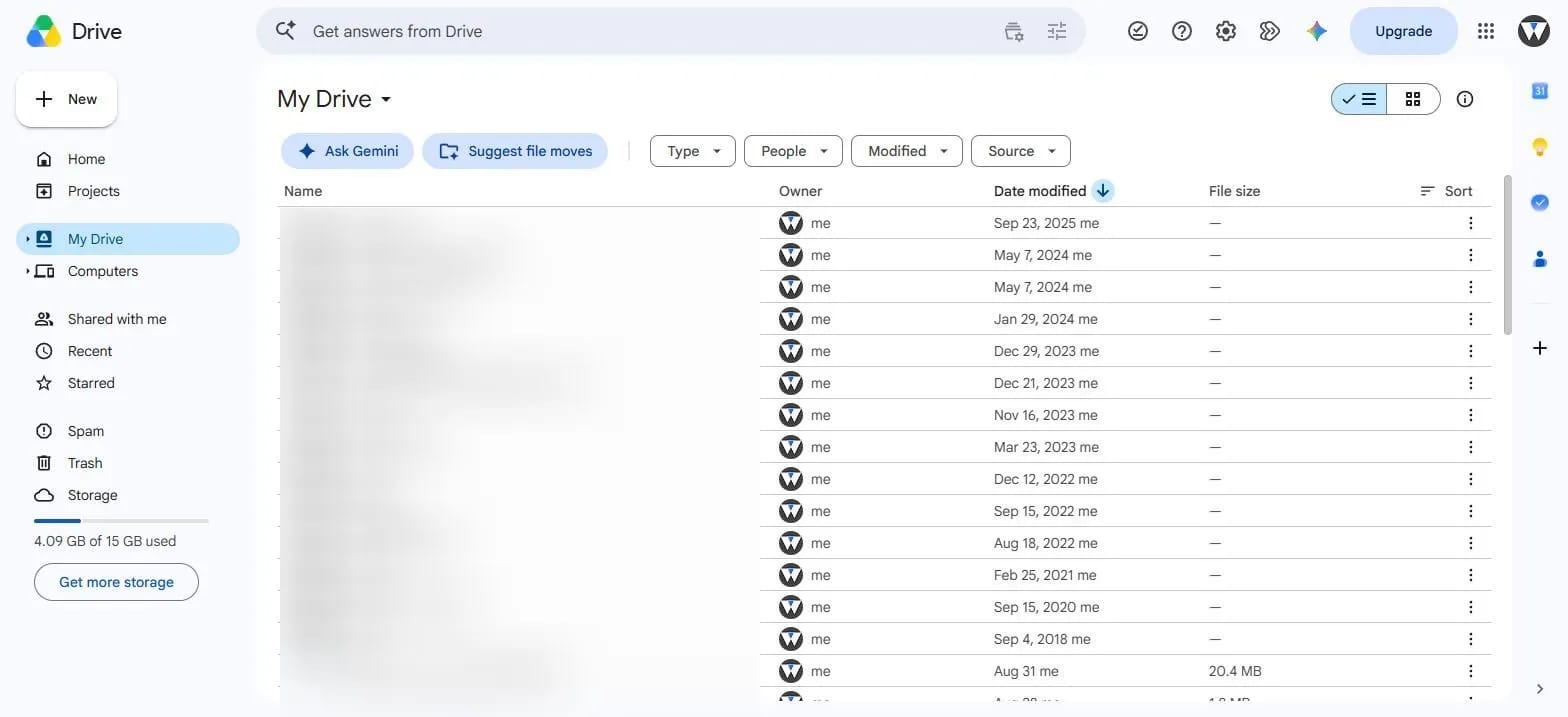
Drive is cloud storage: every Doc, Sheet, and Slide you create is a file stored there, not on your hard drive, so it is reachable from any device you sign into. Files can be organized into folders exactly like a normal file system (covered in File and Folder Basics), and non-Google files — PDFs, images, ZIPs — can be uploaded and stored there too.
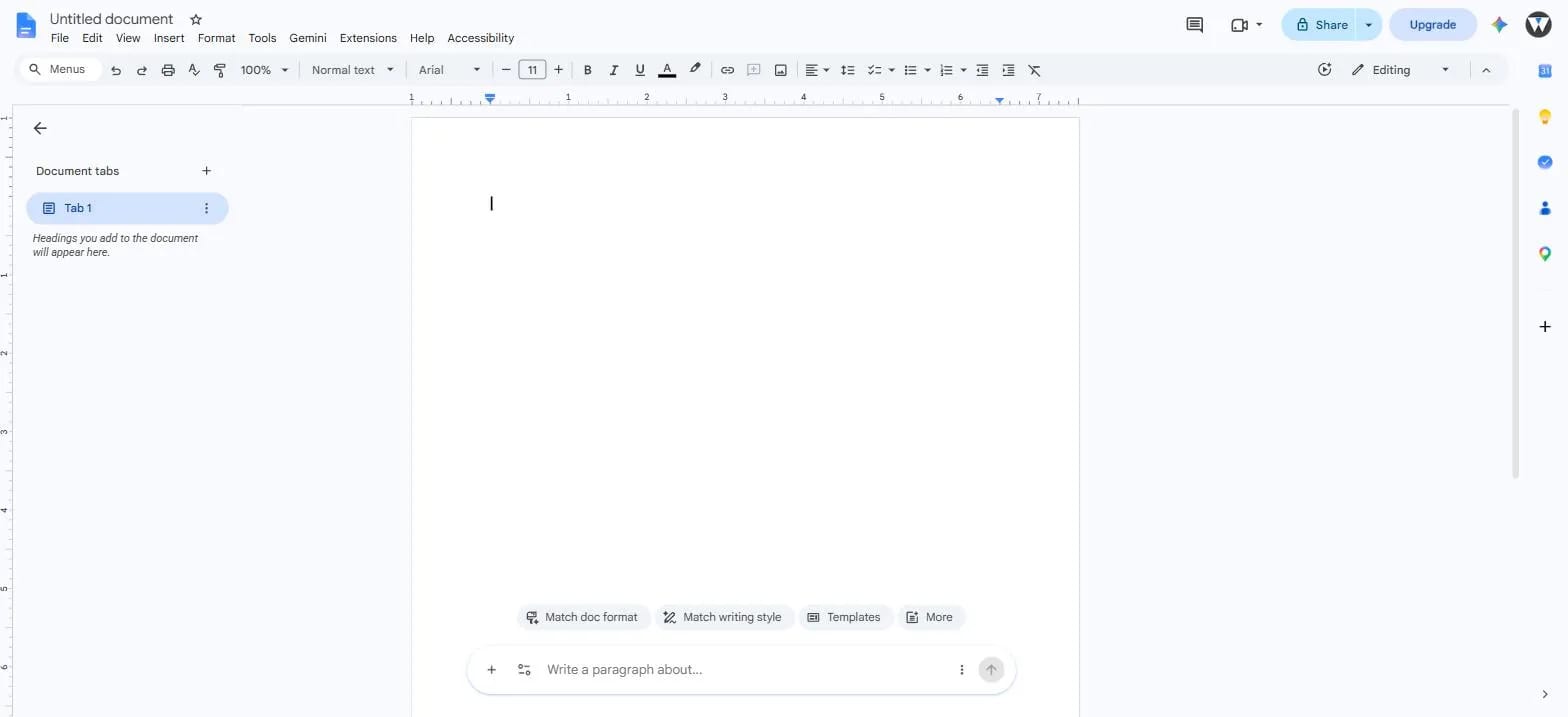
Docs is Google's word processor — the direct equivalent of everything covered in the Word lessons: typing and formatting text, paragraph styles, headers and footers, images, and tables. The toolbar and menu layout will look familiar coming from Word, with one addition worth knowing: Gemini, Google's AI assistant, is built into the editor for drafting or reworking text on request.
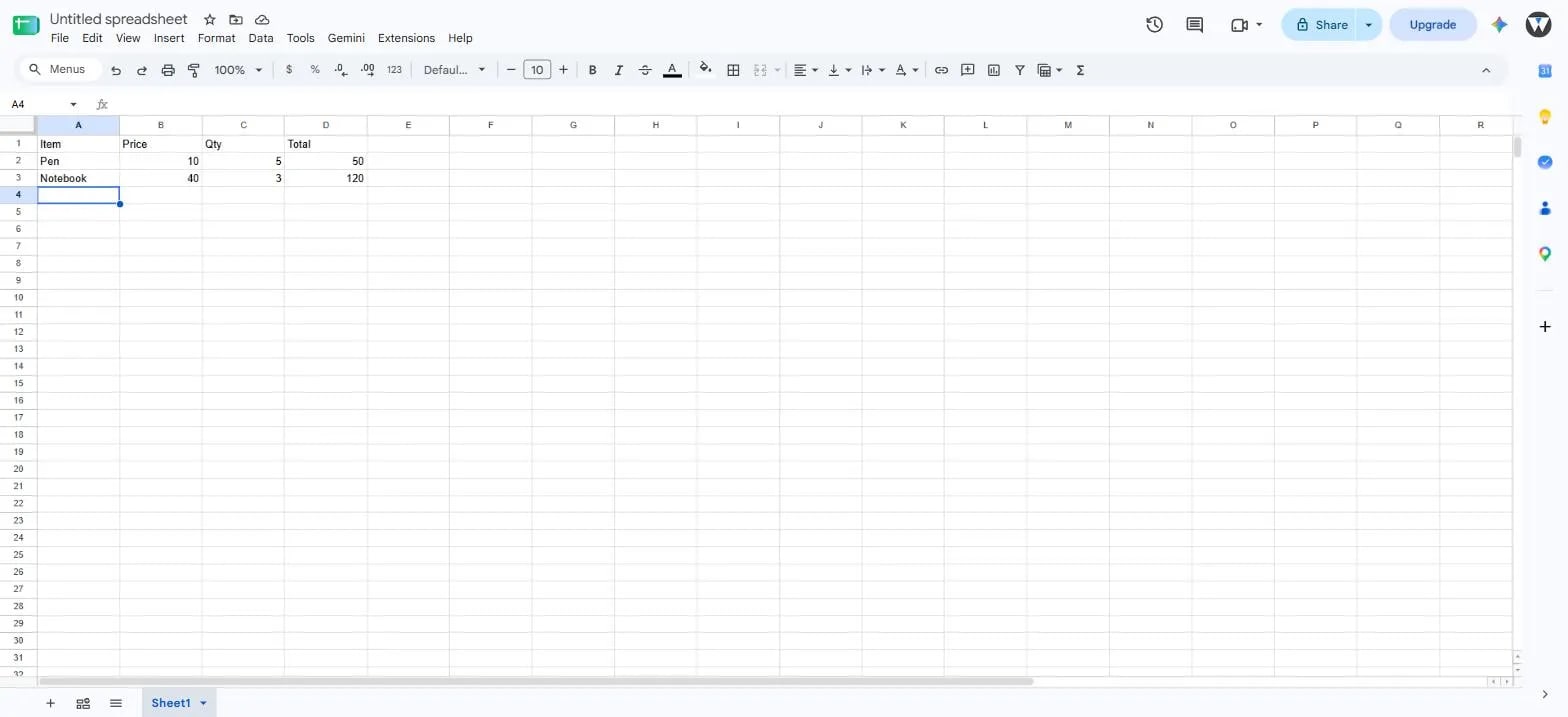
Sheets is the spreadsheet app — rows, columns, and formulas work the same way they do in Excel, including =B2*C2-style cell references and functions like SUM and IF. A formula written in Sheets and one written in Excel are close enough that most of what the Excel lessons taught transfers directly.
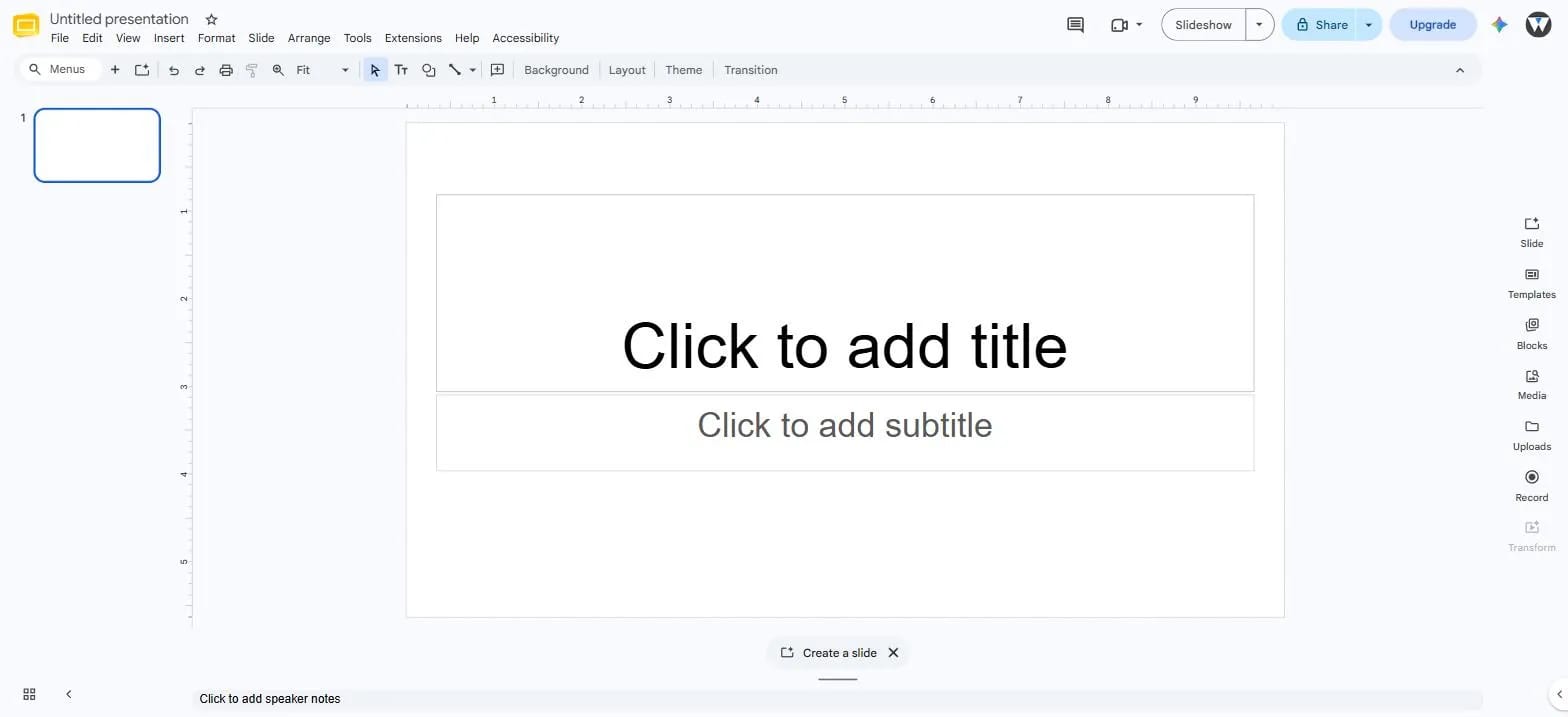
Slides is the presentation app, equivalent to PowerPoint — slides, layouts, themes, transitions, and speaker notes all work the same way conceptually. Like Docs, it opens on a blank slide with title and subtitle placeholders ready to click into.
This is the feature Google Workspace is actually built around, more than any single app: multiple people can open the same Doc, Sheet, or Slide at the same time, see each other's cursors, and watch edits appear live, with every change saved automatically as it happens. Share (top-right of every app) generates a link with a chosen access level — viewer, commenter, or editor — so a document can be reviewed or worked on together without ever emailing a file back and forth.
There is no "Save" button, and none is needed — every keystroke is saved to Drive continuously, and Google Docs, Sheets, and Slides can each be made available offline (Google Drive settings → "Available offline"), syncing automatically once a connection returns. Version history (File → Version history) keeps every past state of a file, so an accidental change or deletion is always recoverable.
| Google Workspace | Microsoft Office | |
|---|---|---|
| Runs | In the browser, nothing installed | Installed desktop software (or Microsoft 365's own browser version) |
| Saving | Automatic, continuous | Manual (Ctrl+S), or Microsoft 365 cloud autosave |
| Real-time co-editing | Built in from the start, the core design | Available in Microsoft 365, added on top of a desktop-first design |
| File format | Google's own (.gdoc/.gsheet/.gslides), exports to .docx/.xlsx/.pptx and PDF | .docx/.xlsx/.pptx natively |
| Offline use | Opt-in per file | Default — it's a desktop app |
| Cost for individual use | Free with any Google account | Requires a Microsoft 365 subscription or one-time purchase |
Neither is strictly better — they solve the same problems from different starting points. Google Workspace's free tier and effortless collaboration make it the easier default for students, freelancers, and small teams; Microsoft Office's deeper formatting control and offline-first design still make it the standard in many larger organizations. Both export to and open the other's file formats reasonably well, so a document is rarely locked into one or the other.
Everything covered above works on a completely free, personal Google account — the same one used for Gmail. Google Workspace (the paid business tier) adds a custom email address on your own domain (you@yourbusiness.com instead of @gmail.com), a larger shared storage pool, and admin controls for managing many accounts at once — worth it once a project is a real registered business with a team, not something an individual or a student needs to start.
Nothing here replaces the Word, Excel, and PowerPoint lessons — the underlying skills (formatting a document, writing a formula, designing a slide) are the same skills, just running in a different app. What Google Workspace adds is a genuinely free option with no license to buy, and a collaboration model — several people, one file, no emailing versions back and forth — that comes up constantly in real freelance and team work, the same territory the Freelancing & Client Work category covers.