

Resizing in Photoshop can help you print your images in standard photo sizes, resize and preserve the high quality of digital photos, and enlarge small images to a poster size.
To resize your image to a preset size, follow the steps below:
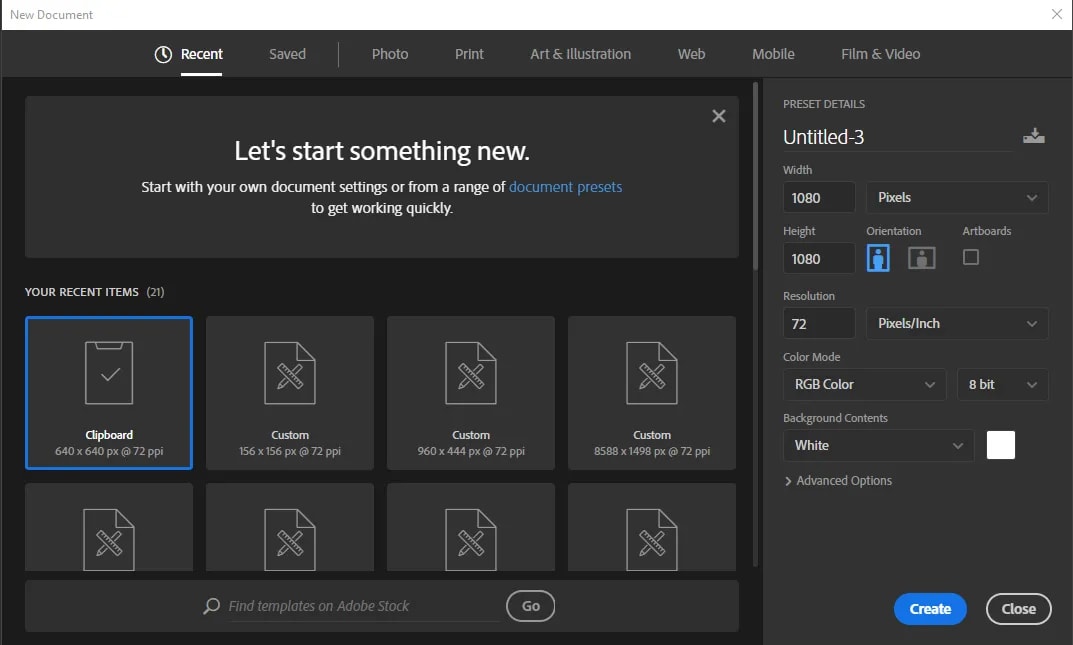 Figure 10: Preset size in the New dialog box
NOTE: All the preset sizes are in portrait orientation. If you wish to resize an image with the landscape orientation, you need to create your own preset. To create your own size, do the following:
Digital photos usually have large dimensions but low resolution, 72 ppi, which affects their quality when their size is decreased or increased. When printed, the photos with the changed size will look pixilated. To resize the digital photos without loosing the quality, follow these steps:
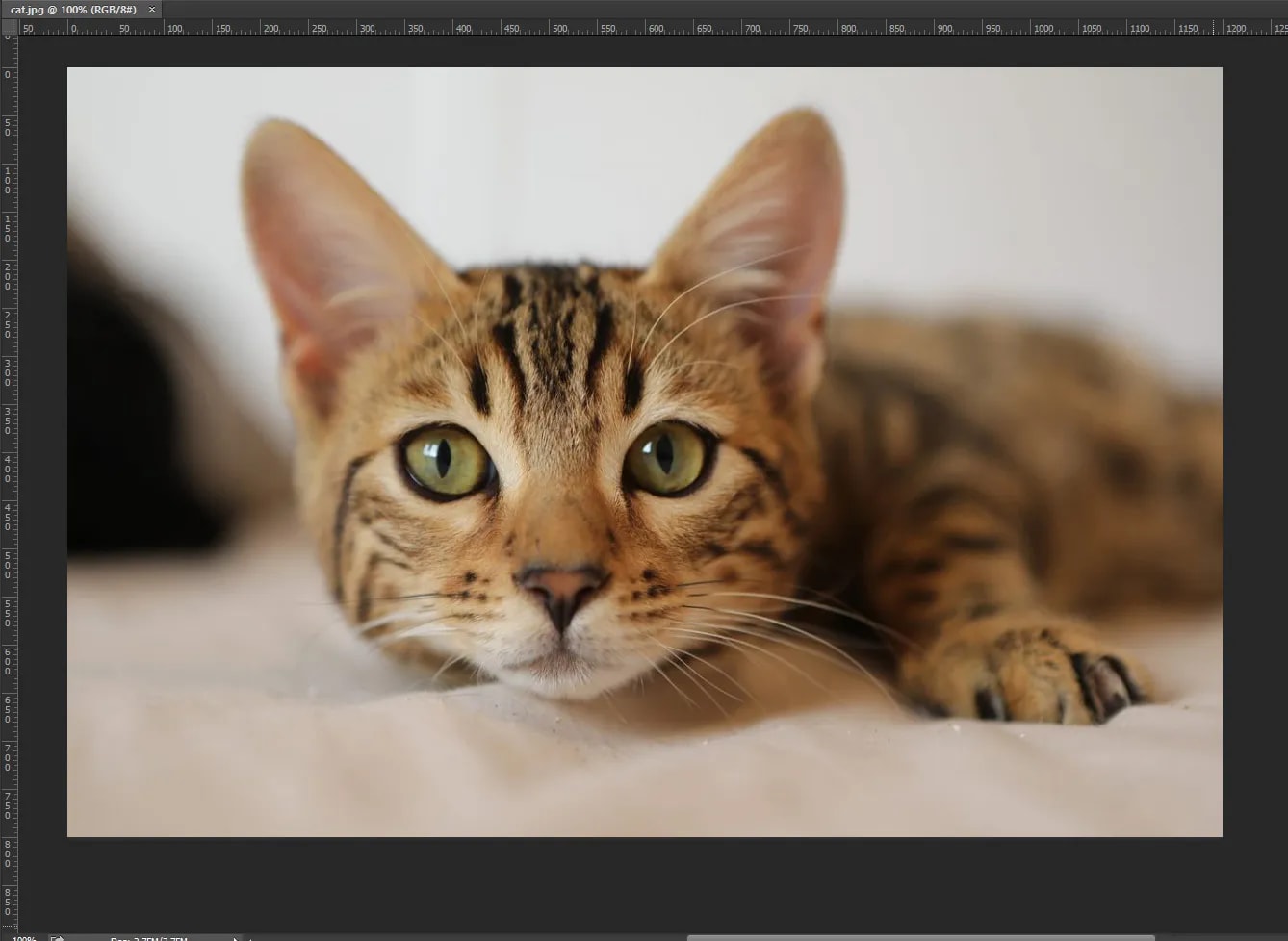 Figure 11: Dimensions of a digital photo
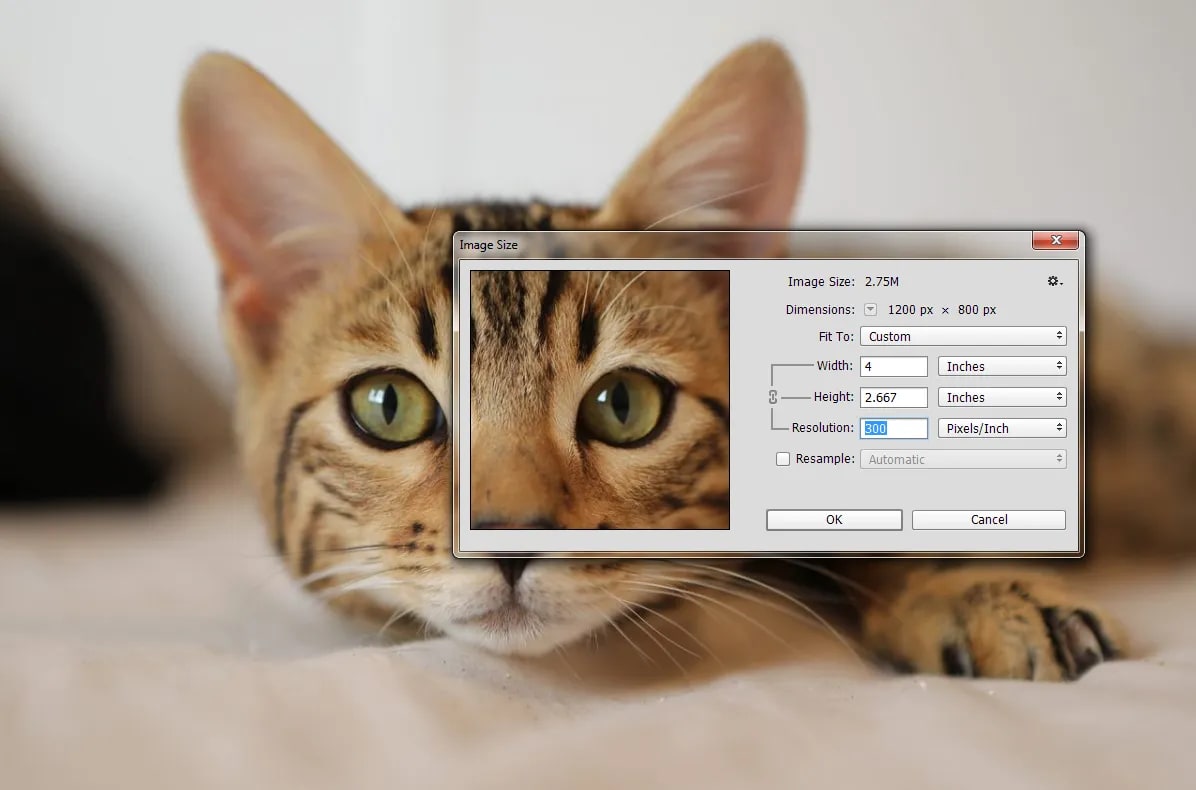 Figure 12: Changing resolution
If you want to make your digital photo into a poster size image, you can do it in the Image Size dialog box. However, just increasing the dimensions will make the image appear blurry and pixilated. To enlarge the image without losing the quality, follow these steps:
NOTE: If the Resampling box is unchecked, the dropdown menu is inaccessible. Always be sure to have it checked.
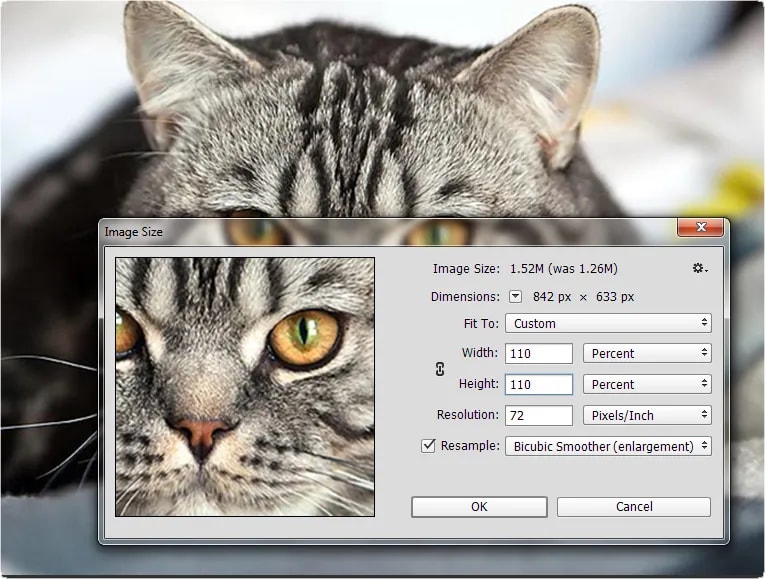 Figure 13: Increasing the size by 10 percent